Connect your Rithmic account
Add the login from your prop firm or broker with New connection, and what each connection brings to the app.
Trading Konsole reads the market and sends your orders through your own Rithmic login. You add it once, from the app, and the accounts on that login appear in the sidebar.
What you need
- A Rithmic login (user and password) from your prop firm or your broker, with L2 market data on the futures.
- For the options on ES and NQ: CME market data on the same login, the one that gives you the ES and NQ futures. Nothing extra to subscribe with us.
Add a connection
Open New connection: the button under the accounts in the sidebar, or Settings › Connections › + New connection.
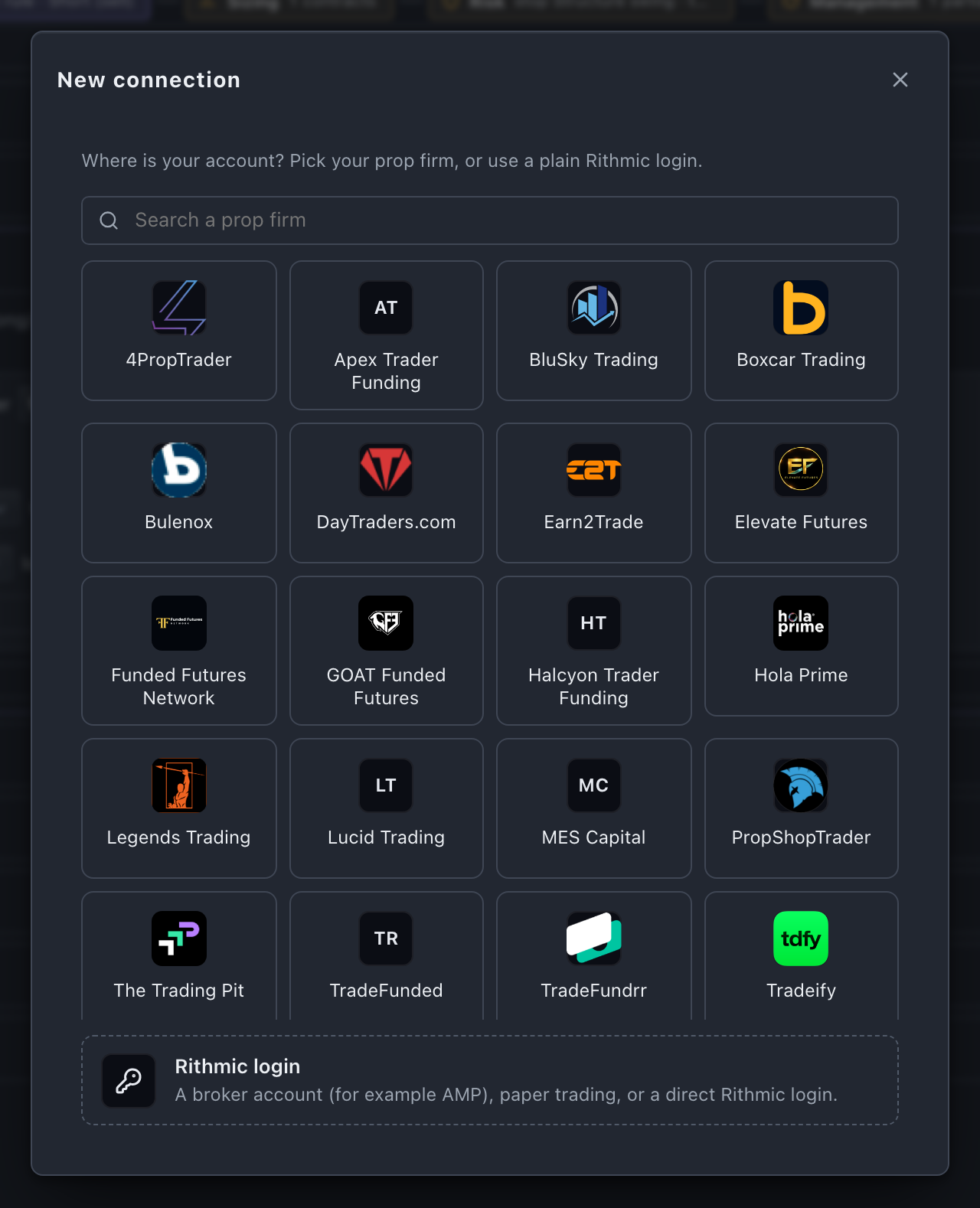
- Where is your account? Pick your prop firm from the grid, by logo and name; the search box above it narrows the list. The firms are the ones Rithmic lists. For a broker account (for example AMP), paper trading or a direct Rithmic login, choose Rithmic login.
- User and Password: the ones your prop firm or broker sent you.
- With a prop firm, the Rithmic system is set for you.
- With Rithmic login, pick the System from the list Rithmic sends. If yours is not there, choose Other… and type the name your broker gave you.
- Name: how the connection appears in the app. It starts with the firm’s name; change it if you have more than one login with the same firm.
- Use as quotes source (market-data): tick it if this connection should give the market data (see below).
- Press Connect.
User and password stay on this computer, encrypted. They are never sent to us.
The connection is saved and applied at once, with no restart: your accounts appear in the sidebar within a few seconds. If Rithmic refuses the login, a notice says so.
On first launch, when there is no connection yet, the app asks right after sign-in with Connect your futures data: the same steps. I’ll do it later skips it; New connection is always there afterwards.
Market data and accounts
- One connection gives the market data: prices, book and trades for the charts, the DOM and the options. In Settings › Connections it carries the ★ quotes badge. If another connection gives them already, the Use as quotes source box says so, and ticking it moves the market data to the new one.
- Every connection brings its accounts: all of them appear in the sidebar, marked Live or Paper. On a live account every order you send is real.
L2 and MBO
The connections list shows what each login gives:
- L2 + MBO: the order book by price plus market-by-order (each order in the queue).
- L2: the order book by price only. This login does not include market-by-order.
- L2 · MBO ?: not checked yet. The check runs when this connection gives the market data.
Change or switch off a connection
In Settings › Connections each connection has:
- edit: name, system, user and password, quotes source.
- use for quotes: make it the source of the market data.
- disable / enable: switch it off and on without deleting it. If that login still has working orders or open positions, the app asks first: the broker keeps them, but the app stops managing them until the login is back.
- remove: delete the connection.
Edits, and switching a connection off or on, apply at once, with no restart.
Next: the Quick start for a tour of the app, and GEX and the flip point for where the options come from.