A dense tab, the Cockpit template
The Cockpit page is gone. How to get a dense tab today, from the Cockpit template or from a layout filled with the panels the Cockpit had.
The Cockpit used to be a fixed page with the chart, GEX by price, the sub-charts and a column of metrics. The app now has a single page, the Workspace: the same panels live in tabs you arrange yourself, and a dense tab takes a minute to set up.
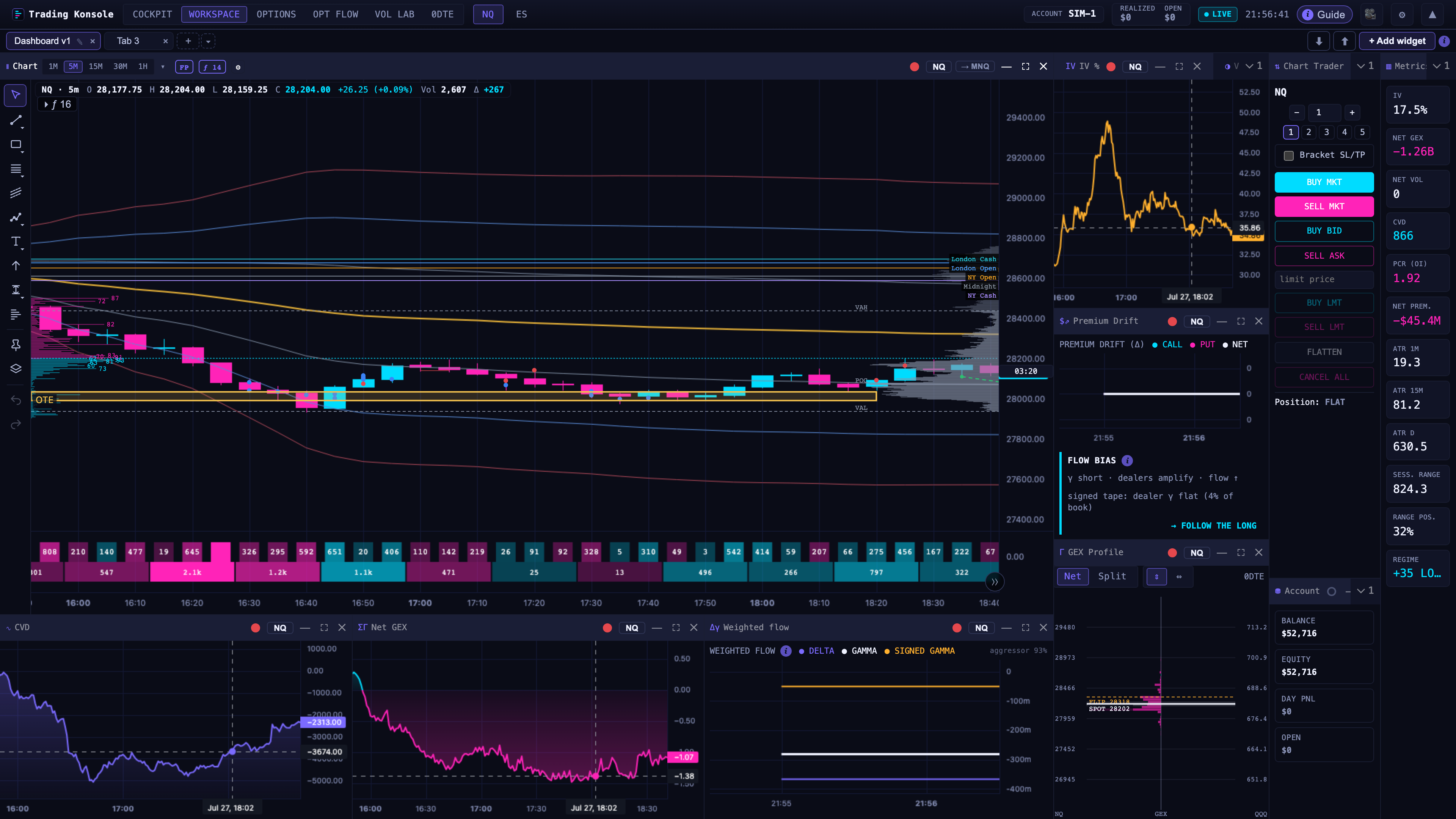
The Cockpit template
+ › New tab › Cockpit builds a tab with:
- the Chart, large at the top left, with the order panel inside;
- Gamma targets and the DOM beside it;
- Positions and Working orders below.
You choose the market (NQ, ES, MNQ, MES, CL or GC) and the name of the tab. The panels share one link group, so a new market on one of them moves them all. The template uses order-flow and options panels: on Free it carries the Pro badge.
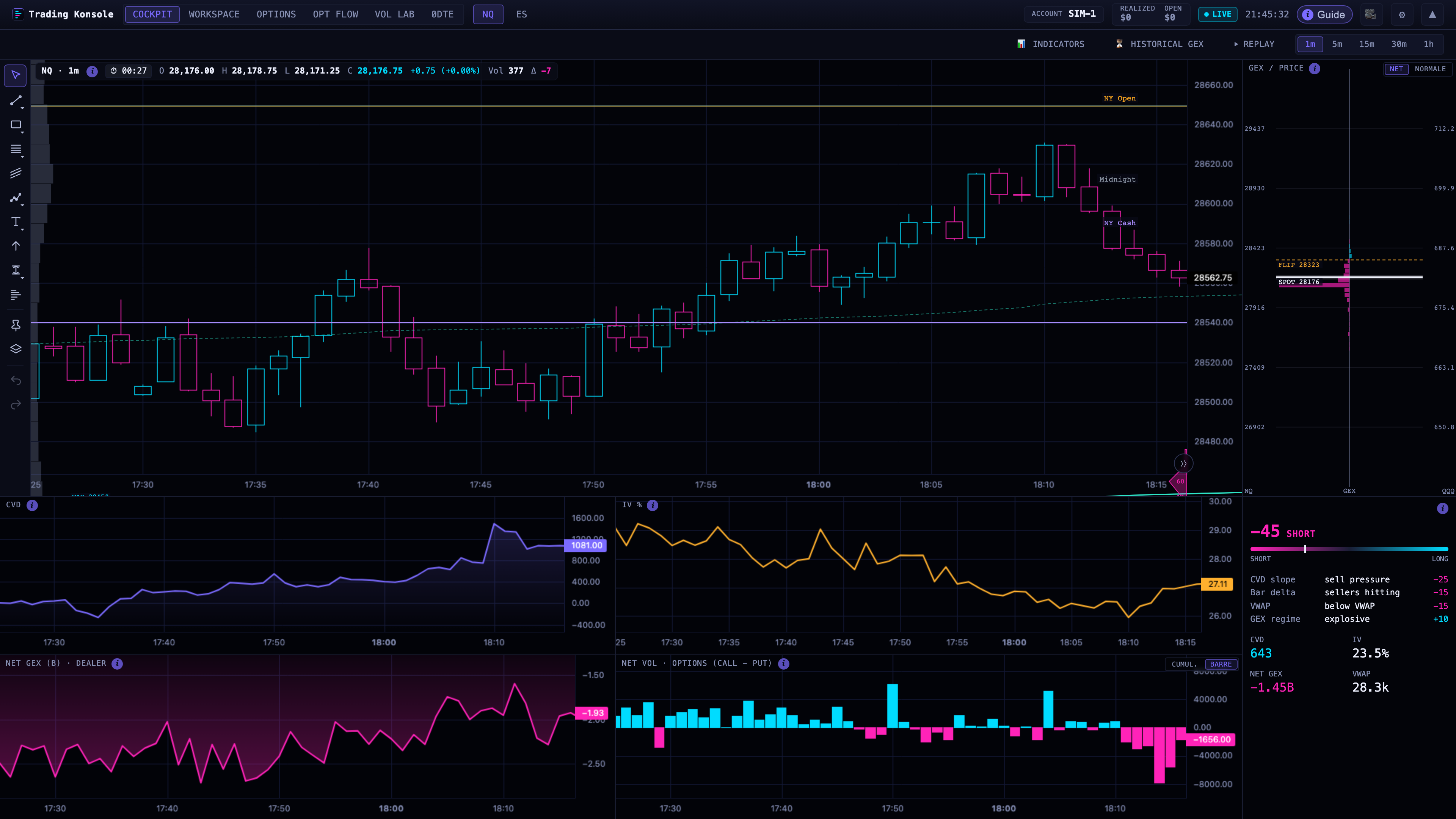
Rebuilding the Cockpit layout
To lay out the panels the Cockpit page had:
- + › New tab › Start from a layout, and pick a layout with enough panels.
- Keep Fill for me and choose the widget of each panel: Chart, GEX Profile, CVD, IV %, Net GEX, Net Vol, Vol Regime and Metrics (the tiles that were the side column: IV, Net GEX, Net Vol, CVD, VWAP and more, your choice).
- Choose the market and the name, then Create the tab.
The panels of the new tab share a link group: market, timeframe, crosshair and scrolling move together. + › Save this tab… keeps the result as one of your templates: it then appears in the + menu and under Your templates in the wizard.
Changing market
The instrument button in a panel’s header, or a click on a market in the sidebar, changes the market; the panels in the same link group follow.